
Running an internet speed test takes a single click, yet millions of users across Nigeria interpret their results incorrectly. You hit run, wait ten seconds, see a number that looks lower than your subscription package, and assume your Internet Service Provider is underperforming. However, testing network performance requires controlling environment variables to capture true throughput, latency, and line stability.
Whether operating a remote startup in Lagos, running cloud workloads across an enterprise network, or streaming video at home, inaccurate speed tests lead to misdiagnosed network issues. Running a speed test without isolating your connection creates bottlenecking that obscures actual line capacity.
This guide outlines how to measure network bandwidth, latency, and packet performance correctly, while positioning your infrastructure for optimal throughput.
Understanding Network Metrics: Speed vs. Bandwidth vs. Latency
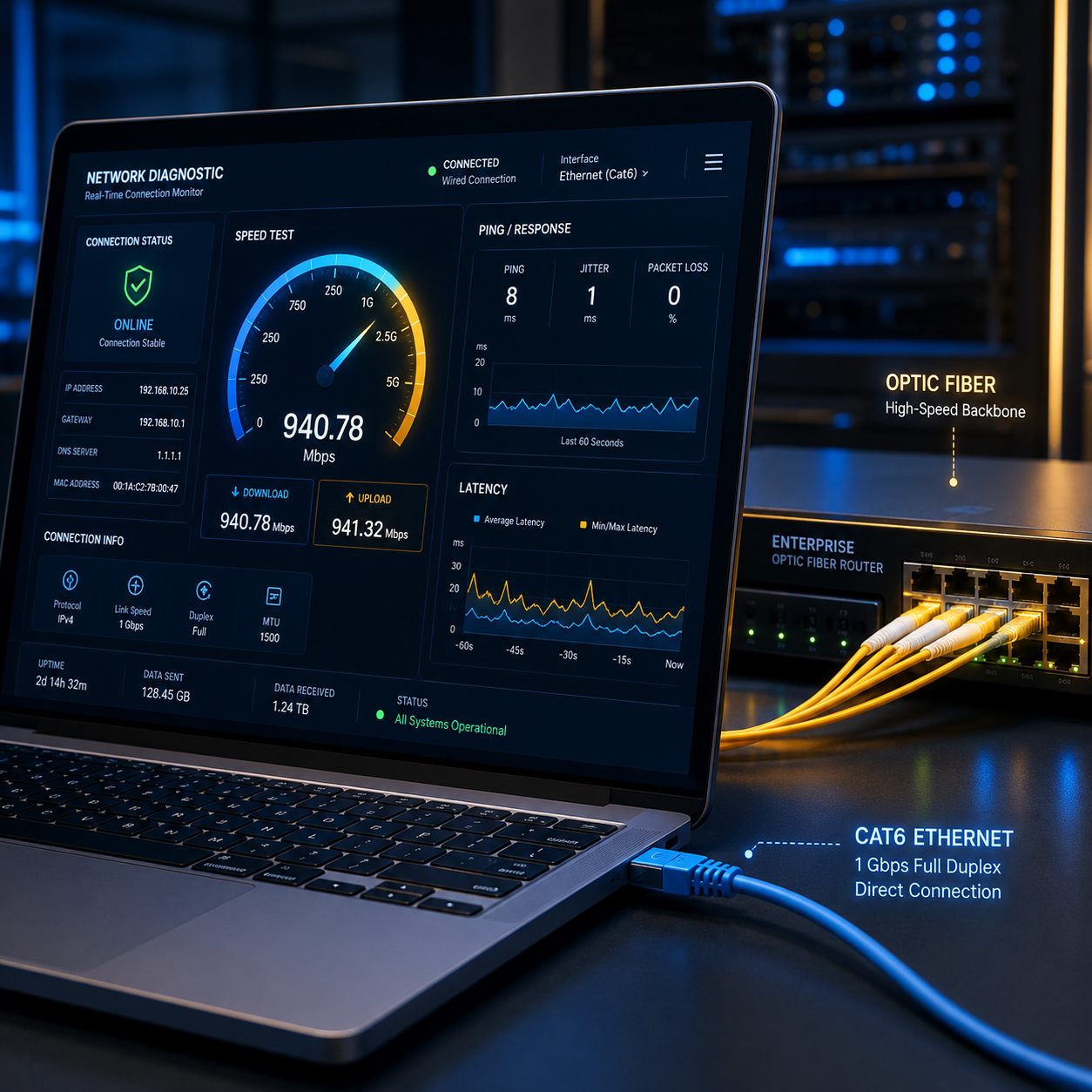
Evaluating network quality requires looking beyond raw megabits per second (Mbps). Speed tests report three distinct operational metrics that dictate your digital experience.
Download and Upload Bandwidth Download speed measures how rapidly data transfers from external servers to your local device, which affects file downloads, web browsing, and video playback. Upload speed measures data transmission from your device back to the cloud, governing video calls, cloud backups, database syncing, and remote desktop sessions.
Traditional Home Broadband and Fiber-to-the-Home (FTTH) packages frequently use asymmetrical ratios, delivering higher download capacity than upload limits. Conversely, Enterprise Internet Leased Lines (ILL) provide 1:1 symmetrical bandwidth, ensuring identical speeds in both directions for demanding business tasks.
Latency and Ping Latency measures the round-trip time (in milliseconds) required for a data packet to travel from your device to a server and return. Lower latency produces more responsive real-time applications. A download speed of 100 Mbps feels slow if latency sits above 150ms during voice over IP (VoIP) calls or cloud terminal interactions.
Jitter and Packet Loss Jitter measures the variation in latency over time. Consistent latency creates a smooth stream, whereas fluctuating latency (high jitter) causes video stuttering and dropped call audio. Packet loss represents the percentage of data packets that fail to reach their destination during transit, indicating physical line degradation, wireless interference, or network congestion.
Common Misconceptions That Distort Speed Test Results
Most speed tests reflect local network bottlenecks rather than actual ISP delivery. Common missteps include:
- Testing Over Wi-Fi: Wi-Fi signals suffer from wall attenuation, microwave signal overlap, and physical distance from the router. A speed test over 2.4 GHz Wi-Fi caps around 45–60 Mbps regardless of whether your fiber feed supplies 200 Mbps.
- Active Background Downloads: Running tests while smart TVs stream, cloud applications sync, or background software updates run consumes available bandwidth, skewing test results.
- Outdated Hardware or Ethernet Cables: Using Cat5 cables limits physical transmission to 100 Mbps. Network Interface Cards (NICs) configured to 100 Mbps Fast Ethernet caps also restrict gigabit links.
- Browser and Extension Overhead: Browser extensions, virtual private networks (VPNs), and ad blockers scan network traffic, adding processing delay during active speed testing.
Step-by-Step Guide: How to Conduct an Accurate Internet Speed Test
Isolate your hardware and run network diagnostics directly at the entry point using this structured approach.
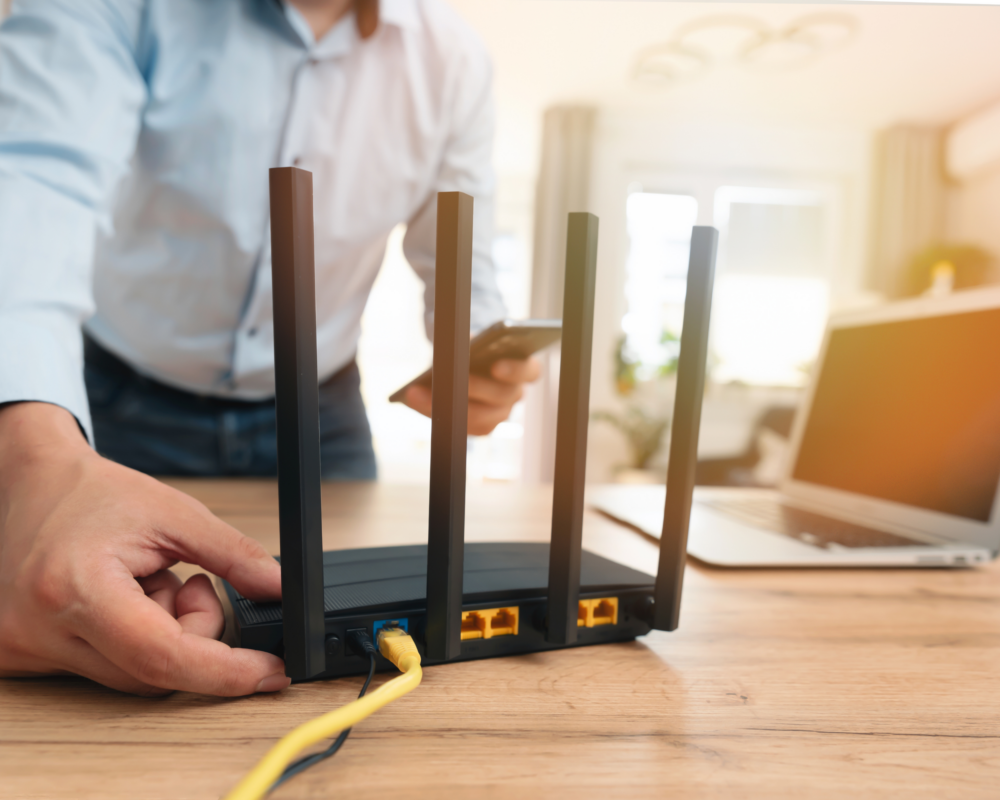
Step 1: Connect via Direct Ethernet Cable Disconnect from Wi-Fi. Plug a Cat6 or Cat6a Ethernet cable directly from your computer into a LAN port on your primary router or Optical Network Unit (ONU). Direct wired connections eliminate ambient radio frequency interference, providing an accurate baseline measurement.
Step 2: Disconnect All Other Devices Disconnect secondary smartphones, tablets, smart TVs, and IoT appliances from the network. If testing an enterprise network, schedule tests during maintenance windows or isolate a dedicated VLAN to prevent internal employee traffic from inflating consumption.
Step 3: Close Background Applications and VPNs Close background software including cloud synchronization agents, open browser tabs, peer-to-peer clients, and remote management tools. Disable active VPNs, proxy servers, and third-party antivirus firewall hooks during the test period. VPN encryption protocols route traffic through remote servers, artificially raising latency while throttling throughput.
Step 4: Choose the Right Testing Platform and Test Server Select HTML5-based test platforms that use multi-thread TCP connections to measure maximum throughput.
- Use Ookla Speedtest for custom server selection across local Nigerian nodes.
- Use Fast.com (powered by Netflix) to evaluate single-stream content delivery speeds.
- Use Cloudflare Speed Test for detailed breakdown metrics covering jitter, latency under load, and packet loss.
Manually select a local test server hosted in your regional vicinity (e.g., Lagos) to establish local baseline performance, then run a secondary test against an international server (e.g., London or Ashburn) to evaluate overseas transit routing performance.
Step 5: Run Multiple Tests Across Time Blocks Network traffic varies throughout the day due to upstream ISP peak usage hours. Conduct tests across morning, afternoon, and evening windows over three consecutive days. Calculate the mean average from these runs rather than relying on a single data point.
Interpreting Your Speed Test Results
Evaluating test results against your provider’s Service Level Agreement (SLA) requires accounting for network architecture types.
Uncontended vs. Shared Broadband Consumer broadband plans operate on shared contention ratios (e.g., 10:1 or 20:1), where total bandwidth distributes across multiple households in a neighborhood. During peak evening hours, available throughput naturally dips.
In contrast, an Internet Leased Line provided by TecPoint Global Solutions offers 1:1 uncontended bandwidth backed by strict SLAs. An uncontended 50 Mbps line delivers 50 Mbps continuously 24/7, unaffected by neighboring activity.
Evaluating Satellite Internet Metrics Testing Low Earth Orbit (LEO) satellite setups like Starlink involves specific considerations. While satellite speeds fluctuate based on satellite orbital positions and weather conditions, enterprise deployments require precision alignment and clear Line-of-Sight (LoS). High latency readings during heavy rainfall indicate rain fade or obstruction issues rather than local network failure.
Troubleshooting Slow Internet Speeds
When speed tests confirm throughput falling below subscribed baseline thresholds, run these troubleshooting checks:
- Restart Network Edge Hardware: Power-cycle your fiber ONU, router, and access points. Powering down devices clears full buffer queues and forces dynamic IP re-assignments.
- Inspect Cable Infrastructure: Check physical patch cables for bent copper pins, tight bends, or damaged shielding. Replace legacy cables with certified Cat6 lines.
- Optimize Wi-Fi Channel Selection: Use channel analyzer tools to select clear 5 GHz or 6 GHz frequencies, avoiding congested 2.4 GHz bands.
- Audit Router CPU and Memory Usage: High network loads can max out consumer router processors, leading to packet drops. Enterprise operations require hardware engineered to route multi-gigabit workloads efficiently.
Why Infrastructure Architecture Matters: The TecPoint Advantage
Achieving reliable internet performance requires underlying network architecture built for resilience. TecPoint Global Solutions delivers high-performance enterprise connectivity, smart estate solutions, and managed IT services across Nigeria.
By deploying redundancy across physical optic fiber routes, dedicated microwave radio links, and Starlink enterprise satellite failovers, TecPoint ensures uninterrupted uptime and low latency for mission-critical operations. Whether managing estate connectivity via Fiber-to-the-Home (FTTH) networks or scaling business operations with symmetrical Dedicated Internet Access, TecPoint offers guaranteed bandwidth delivery tailored to modern digital demands.
Frequently Asked Questions
Why does my speed test show different results on different websites? Different testing platforms use varying server locations, routing paths, and TCP stream counts. Testing tools like Fast.com measure single-connection HTTP downloads from Netflix servers, while Speedtest.net opens multiple parallel TCP streams to local ISP nodes, resulting in higher throughput measurements.
Why is my Wi-Fi speed significantly lower than my wired speed? Wi-Fi signals degrade due to distance, physical wall barriers, radio frequency overlap, and consumer hardware limits. Ethernet patch cables eliminate wireless attenuation, transmitting raw capacity directly from the router to your device.
What is a good ping result for business internet in Nigeria? For local traffic within Lagos or regional nodes, an acceptable ping ranges from 5ms to 30ms on fiber optic connections. For international routes to Europe or South Africa, typical latency falls between 80ms and 140ms. Low-latency performance requires direct peering agreements and optimized fiber routing.
How often should a business perform network speed and stability tests? Businesses should automate continuous network monitoring using SNMP tools rather than relying on manual tests. Automated logging tracks latency drift, packet loss, and throughput dips, providing clear diagnostic data to review against your ISP’s SLA agreement.